
The Online Processing Center (OLPC) is officially retired and completely replaced by the much-improved new system – Student Management Portal (SMP). All PADI Members are now using SMP to manage their students’ educational journeys.
SMP allows you to:
- Assign and manage eLearning codes
- Assign and manage digital forms
- View and update student diver information
- Check eRecords, see completed digital forms and look at student certification history
- Approve logged dives
- Process certifications
Essentially, you have quick access to detailed diver information throughout every step of the certification process.
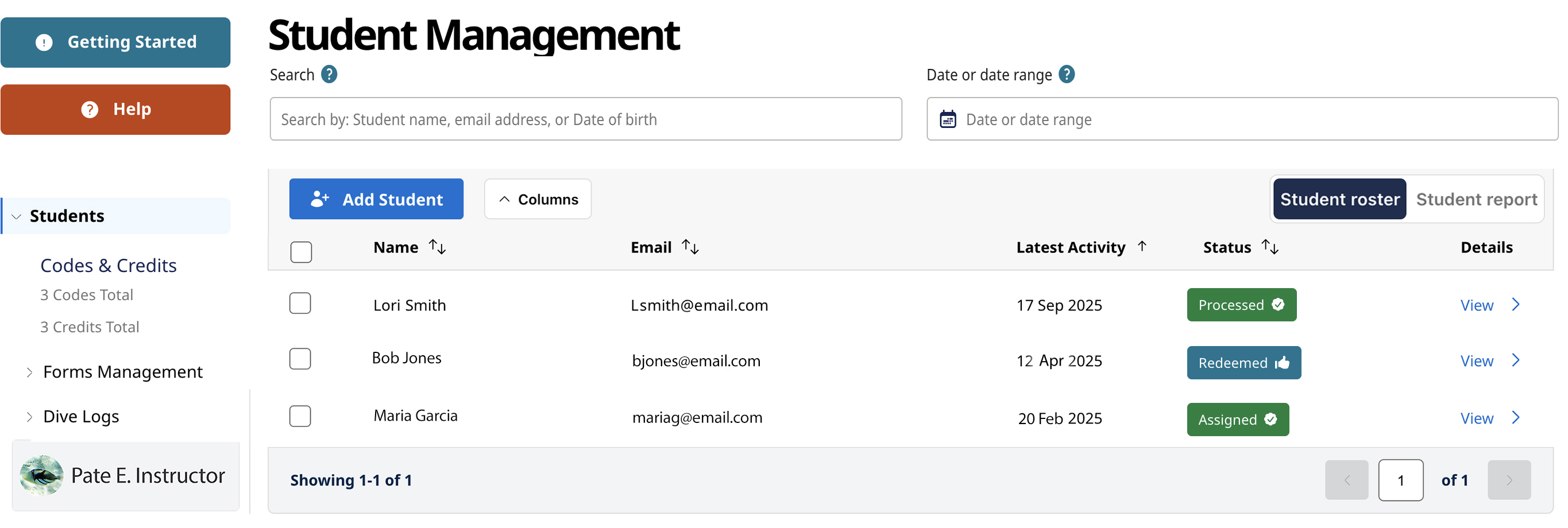
SMP features continue to be added and validate that this system fulfills your needs while saving you time and effort. For example:
- To look up a student diver, you can use the robust search feature or various column filters to more quickly find the right person.
- You can edit a new student’s profile. If a student gets a new phone number or provides you with a secondary number, such as a home phone number, you can edit that information for the student.
- When logged in as a PADI Dive Center or Resort, you have access to an Admin feature that allows you to create an instructor roster. This means that when processing certifications, you simply choose the instructor from the roster, instead of having to type in their PADI Member number.
- You can now select PADI AWARE eCards for student divers with a donation for the card going to the PADI AWARE Foundation®. If you’re a 100% AWARE Member, PADI AWARE eCards show up as the default card choice.
- eRecords are now print-friendly. For the occasions when you need a paper record or want to “print to PDF” to send a digital version, SMP provides that option.
- You can batch process certifications. Using the smart filters on your student roster, you can quickly find and select everyone in a class, then process their certifications with a few clicks.
- In addition to the eLearning codes you have purchased, you can also see any credits you may have in the left panel under Codes & Credits. If you choose to process a certification using a PIC credit instead of the eLearning code, a notification pops up asking if you are sure.
- You can remove a student from your roster. This does not remove the student from the PADI System, only from your roster.
- You can switch between your Student Roster and your Student Report. Your Student Roster lists the divers you imported into SMP or recently added. Your Student Report lists all divers that were affiliated with you via the now retired OLPC.
Remember that you can refer to the Frequently Asked Questions (FAQ) document to get more information and watch a series of linked “How To” videos (in English) on the PADI Pros’ Site (Training/Teaching Resources/How To Videos) that provide expanded details about SMP’s functions.