The Online Processing Center (OLPC) evolved over time with features added to each version to better serve the needs of PADI Pros™. However, after years of successful use, the OLPC is being retired, and it’s time for a more encompassing and intuitive system – the Student Management Portal (SMP).
SMP is user-friendly and efficient, and it’s designed to allow you to manage your student divers’ journeys from course enrollment through certification.
It allows you to:
- Assign and manage eLearning codes
- Assign and manage digital forms
- View and update student diver information
- Check eRecords, see completed digital forms and look at student certification history
- Approve logged dives
- Process certifications
Essentially, you have quick access to detailed diver information throughout every step of the certification process.
You’ll find it by logging into the PADI Pros’ Site and looking under Student Management/Manage Students/Student Management Portal.
How To Get Started
There is a Frequently Asked Questions (FAQ) document and a series of “How To” videos on the PADI Pros’ Site (Training/Teaching Resources/How To Videos) that provide expanded information about the SMP’s functions.
Import Roster
When you first enter the Student Management Portal, you’ll notice that in the left panel, there is an “Import Roster” button.
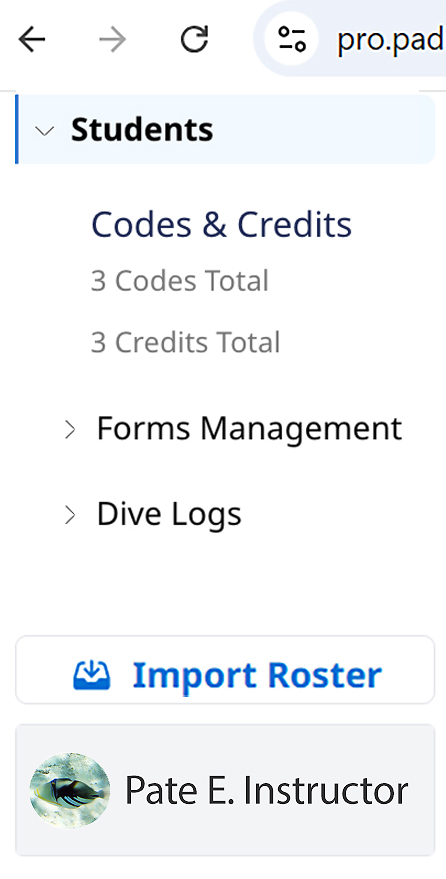
Selecting this will import two years of your student history – anyone who you assigned a code to or redeemed a code you assigned. It may take a few moments to import all your data, but once there, you can start using the SMP with current student divers. There is also an “Add Student” button that allows you to add new customers to your roster, or add previous customers who may not have taken courses from you in the past two years.
Student Management
On the “Student Roster” view, you’ll see each student diver’s name, email, latest activity and status, plus there is a link to show more detail about the individual. You can sort each column in ascending/descending order, and you can also use the dropdown “Status Filter” to sort by status. For example, you can look for all the student divers you’ve recently added to your roster.
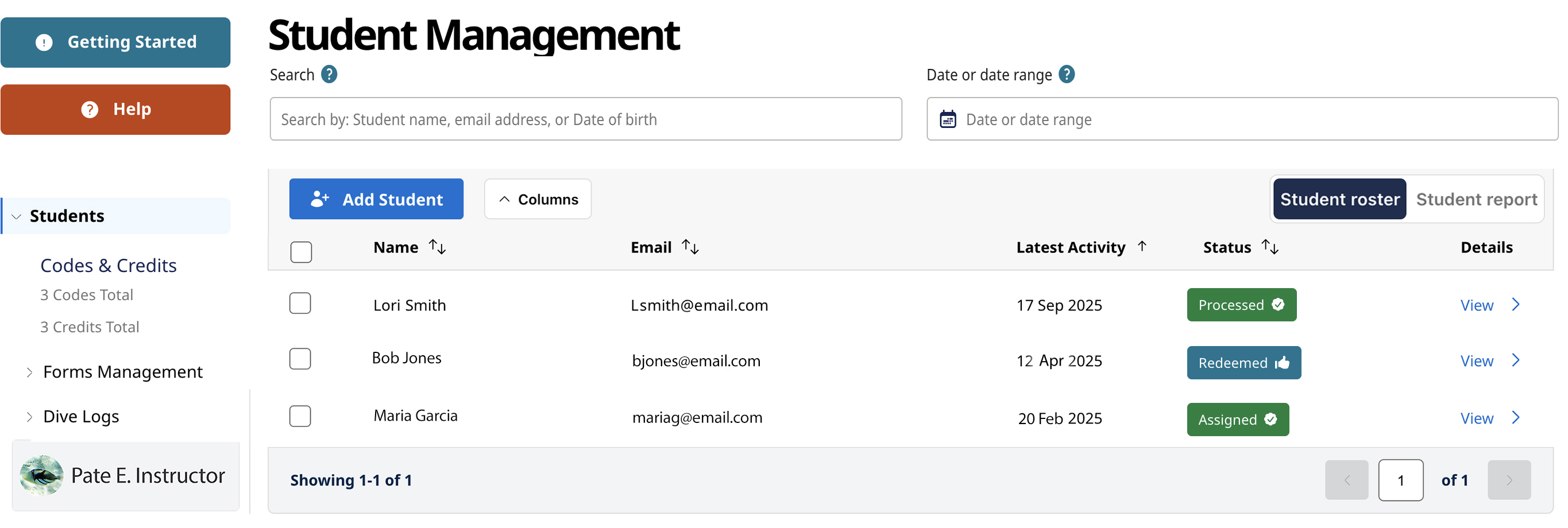
At the top, there is a robust search feature that allows you to look for student divers by name, email address, diver certification number or birth date. As your roster grows, this will help you quickly find the correct diver to whom you need to assign new codes or for whom you need to process a certification.
Student Roster and Report
Another feature is the ability to switch between your Student Roster and your Student Report (see upper right). Your Student Roster lists the divers you imported into SMP or recently added. Your Student Report lists all divers that were affiliated with you via the now retired OLPC. If you need to look up a former student diver, you can use the search feature or various column filters to more quickly find the right person. You’ll use the Student Roster view most of the time, but you now have the ability to see your whole roster.
Codes and Credits
At the top of the left panel, you’ll see the number of Codes & Credits you have, along with a link to Forms Management to more easily track digital forms, and a link to Dive Log that allows quick access for log approvals.
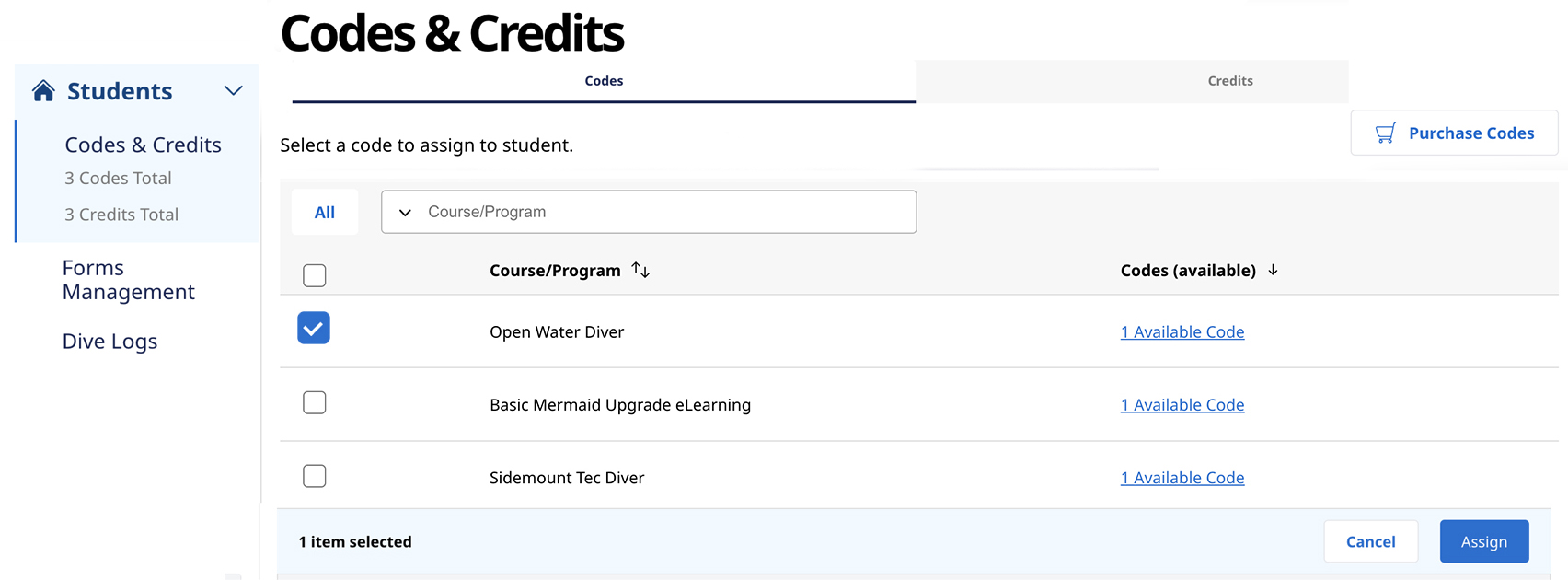
Selecting Codes & Credits takes you to a list of what you have available by course/program.
Available Codes List
You can assign codes from here by checking the Course/Program you want to assign, then clicking on the “Assign” button in the lower right. You can also assign codes from the Student Roster by selecting the “Detail View” for an individual, and then choosing “Assign Codes.”
A great feature is being able to assign multiple codes to a student diver. For example, if you bundle Specialty courses with a PADI Advanced Open Water Diver course, you can assign all the eLearning codes at the same time.
After assigning a code, you can also assign digital forms. With maximum flexibility built in, you can skip sending forms initially and then assign digital forms later.
Student Details
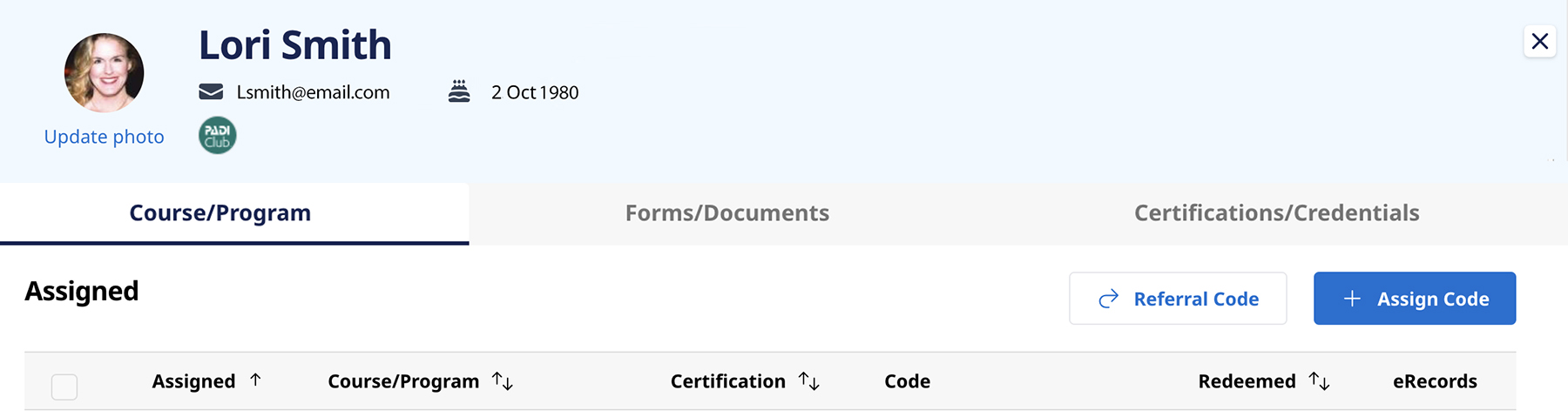
In the student detail view, you see the diver’s history by selecting each of the three tabs – Courses/Programs, Forms/Documents and Certification/Credentials. You can see the diver’s eRecords under Courses/Programs. Check and review digital forms and also upload additional documents under Forms/Documents. See what certifications the diver already has and process certifications under the Certifications/Credentials tab.
Additional Features
- Because all your student diver information is in one spot, you can view, update and manage detailed diver information throughout every step of the certification process.
- You can process certifications for multiple divers in the same class rather than having to process each student’s certification separately.
- Certification processing results in your students immediately getting their PADI eCards. So, there is no longer a need/option for temporary cards.
- PADI Centers can create instructor rosters, add multiple locations and set a favorite to speed up the certification process.
There’s a lot more to explore in the Student Management Portal – log in and take a look. Be sure to read the FAQ document and watch the “how to” videos for more detailed information. Also, contact your PADI Training Consultant if you have further questions.